

Is your printer giving you a hard time when you’re in a rush to print out that important document? Is it showing error messages or just not responding at all? Why do our printers always seem to fail us when we need them the most? If you feel the same, we’ve got you.
Remember, when your printer is not working correctly, it can be frustrating and disruptive to your workflow. But if you find that the common quick fixes do not solve the issue with your printer, it may be time to seek professional help from Brother Printer Services New York or consider replacing the device altogether.
Run Printer Troubleshooters
When your printer is acting up, the first step is to run the built-in troubleshooters. These handy tools can help identify and fix common issues with just a few clicks. Simply navigate to your computer’s settings or control panel, locate the printer section, and run the troubleshooter.
The troubleshooter will scan for any problems with your printer, such as connectivity issues or driver conflicts. It will then provide you with step-by-step instructions on how to resolve these issues quickly and efficiently. Follow the prompts on the screen and let the troubleshooter work its magic.
Clear Paper Jams

Paper jams are really a troublemaker in the office. I mean, who wouldn’t hate a situation where it gets stuck, but your boss keeps shouting at you and asking for the documents? Don’t panic. Here are some quick tips to help you clear the jam and get your printer back up and running in no time.
First, turn off the printer and unplug it from the power source. This will prevent any further damage while you work on clearing the jam. Next, open up the printer cover and carefully remove any stuck paper. Make sure to pull it out gently to avoid tearing or leaving behind small bits that could cause another jam. Use a flashlight to check for any remaining bits of paper or various debris inside the printer. Use compressed air or a soft brush to clean out any dust or particles that may be causing issues. Once you’ve cleared the jam completely, close the printer cover, plug it back in, and turn it on. It should work just fine now.
Update Printer Drivers
Now, let’s talk about the driver. Updating your printer drivers is crucial for optimal performance. Drivers act as the bridge between your device and the printer, ensuring seamless communication. Outdated drivers can lead to printing errors or connectivity issues. Thankfully, updating them is a simple process that can make a big difference. To update your printer drivers, you can simply go to the manufacturer’s website and look for the latest driver versions compatible with your operating system.
Downloading and installing these updates will help address any current bugs or compatibility issues that may be causing problems with your printer. Keeping your drivers up-to-date is an easy way to troubleshoot common printing issues efficiently without much hassle.
Verify Ink or Toner Levels
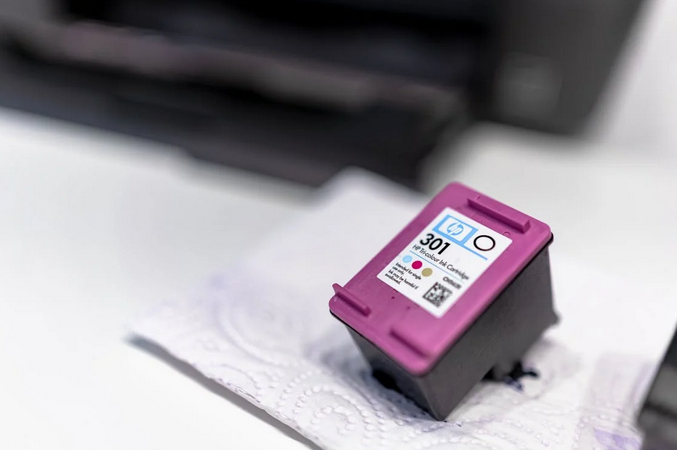
Another common reason why your printer may not be working is low ink or toner levels. Before you start troubleshooting, it’s essential to verify the levels of ink or toner in your printer. Running out of ink can definitely ruin your print quality or even cause no printing at all. To check the ink or toner levels, you might want to access your printer’s settings through the control panel on the device or by using the manufacturer’s software on your computer.
Most printers will have an indicator that shows how much ink or toner is remaining. If you find that the levels are low, replace the cartridge with a new one based on your printer model and the type of ink required. Keeping spare cartridges handy can help prevent any sudden disruptions in printing tasks due to running out of ink.…